Rounded Progress Bar in Unreal Engine
Update: This method is actually much easier than what I had previously written.
Create a progress bar
Set both "background" and "fill" styles' draw type to Rounded Box
Set the bar fill style to "Scale"
You're done! Below is a video of me demonstrating how to do it.
Everything below this line is the old way which takes more work, but I'll leave it up in case you'd like to do it manually :)
Create the Material
Create a material and set it's domain type to User Interface, and the blend mode to TranslucentGreyTransmittance, so we have the option to mess with opacity later.
We will be using a signed distance field, or SDF, to create a capsule shape. Check out these links to learn more about SDFs.
Inigo Quilez SDF Channel: https://www.youtube.com/watch?v=s5NGeUV2EyU CGMatter's SDF Video: https://www.youtube.com/watch?v=LyQWZRfWotQ
Add a custom node to your material graph.
Name it CapsuleSDF
Set the output type to CMOT Float 3
Add 3 inputs: UV, res, and center.
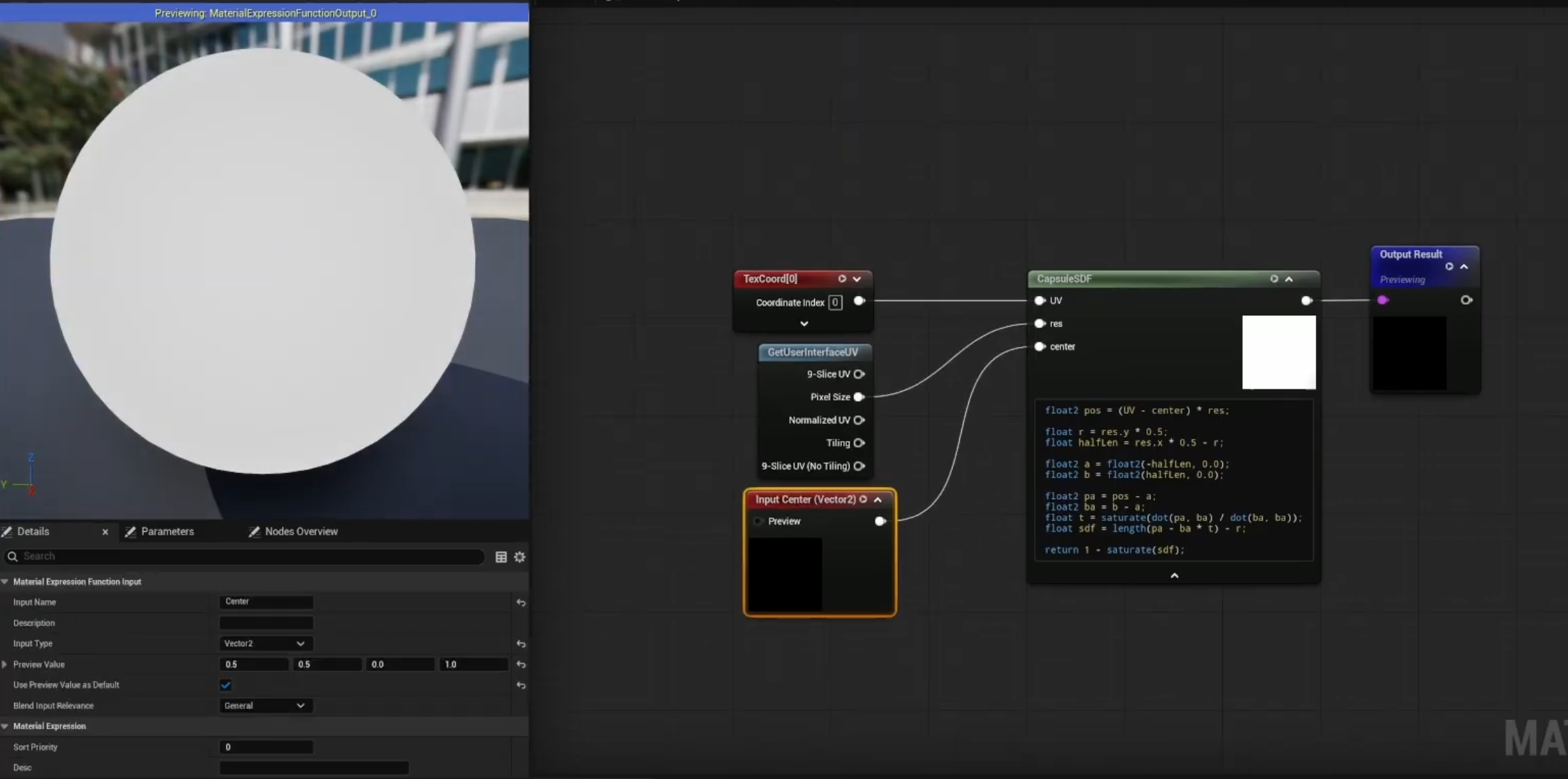
Connect the TexCoord node to UV, use a GetUserInterfaceUV node and use the PixelSize pin for res, and plug in a Vector2 node with the value of (0.5, 0.5) for the center.
Below is the HLSL code for the custom node to generate an SDF capsule that always fits that material's pixel size.
float2 pos = (UV - center) * res;
float r = res.y * 0.5;
float halfLen = res.x * 0.5 - r;
float2 a = float2(-halfLen, 0.0);
float2 b = float2(halfLen, 0.0);
float2 pa = pos - a;
float2 ba = b - a;
float t = saturate(dot(pa, ba) / dot(ba, ba));
float sdf = length(pa - ba * t) - r;
return 1 - saturate(sdf);
(I apologize for the lack of code snippets, I'll get on that ASAP)
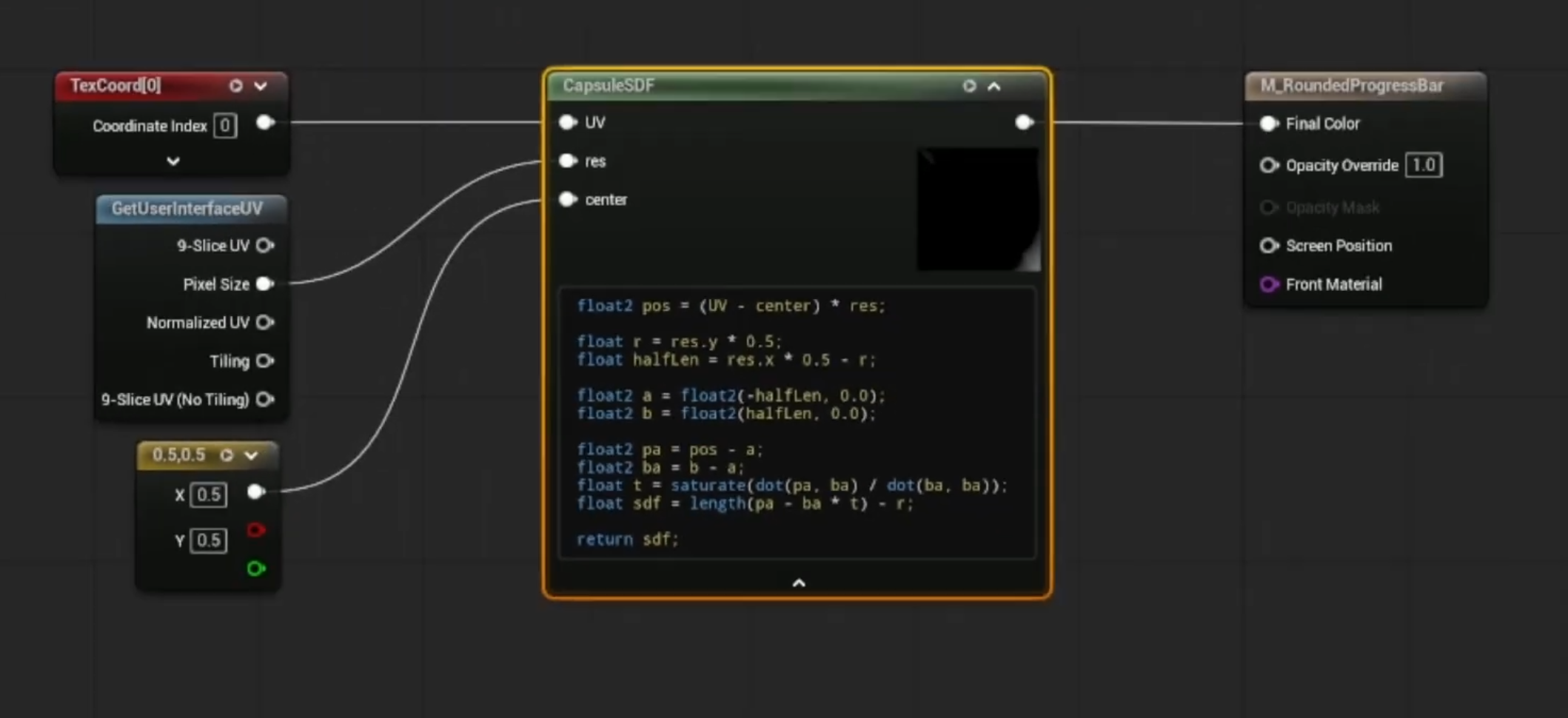
If you plug this into opacity, and set the color to any value you'd like, you'll see you now have a circle in your material preview. To check it working as a capsule, change your material preview to something like 250 x 50.
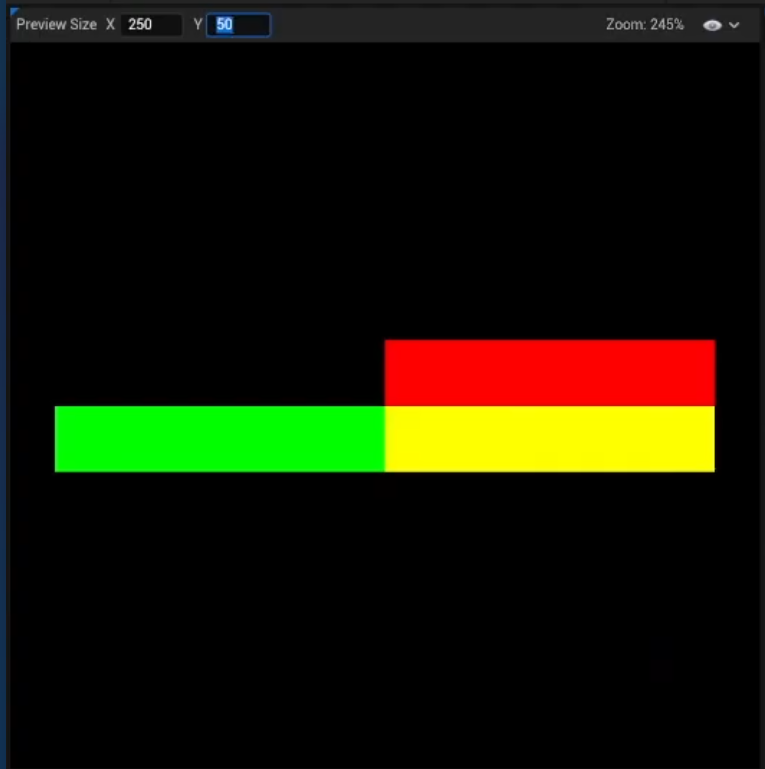
2. Use Material Functions
To turn this capsule into a progress bar, we need to use two separate SDF capsules. Instead of duplicating the custom node, let's turn it into a material function.
Create a material function, and copy everything from your material into it.
Replace the hard-coded Vector2 that plugs into the "center" pin with a Function Input.
Make the function input of type Vector2, and set the default value to (0.5, 0.5, 0.0, 0.0). Only the first two axes are considered, due to the value type of Vector2.
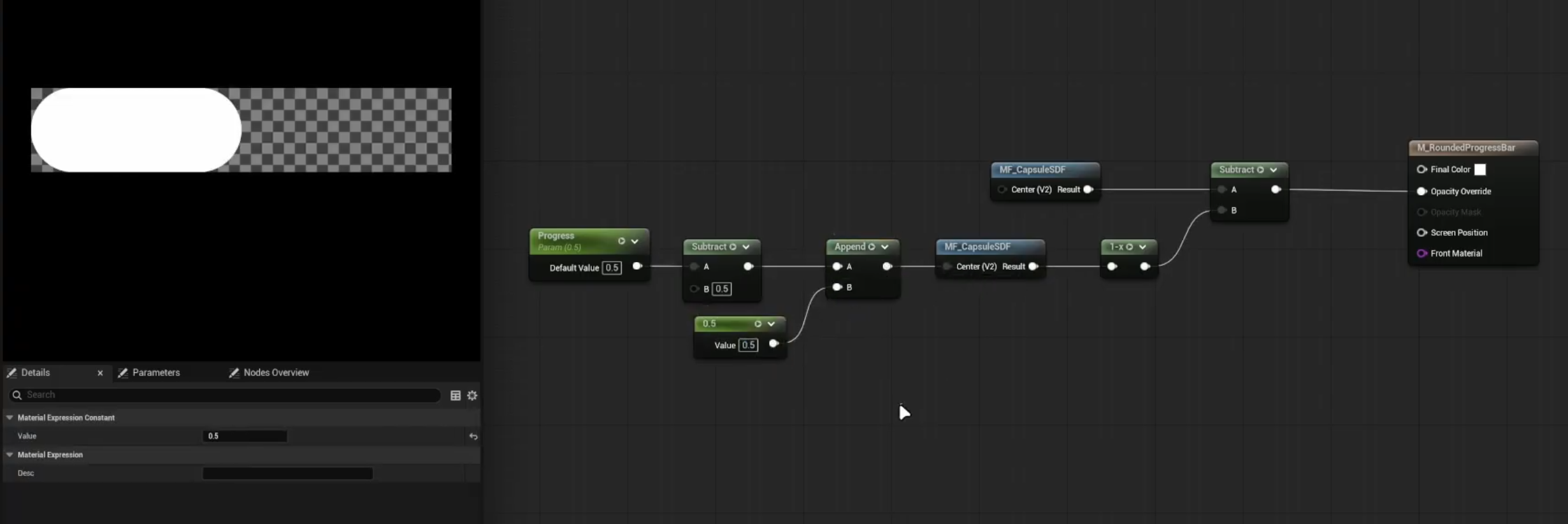
Back in the main material, use two instances of your material function. Invert one of them and subtract it from the first one.
To get a "progress value", create a scalar parameter called Progress and subtract 0.5 from it. Append that with a constant of 0.5 and plug that into the center input.
Now putting any value between 0 and 1 for your progress parameter will generate a rounded progress bar shape.
3. Add to Widgets
Create a widget and add an image component.
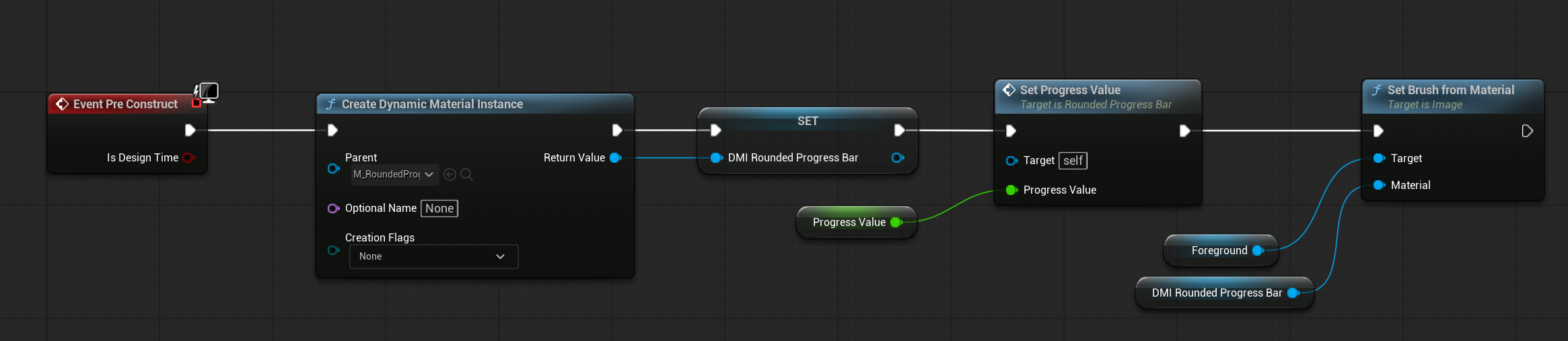
On the widget's pre-construct, create a dynamic material instance from the material we just created. This allows us to change material parameters at runtime.
Promote this dynamic material instance to a variable, and assign it to our image component.
Create a float variable called ProgressValue.
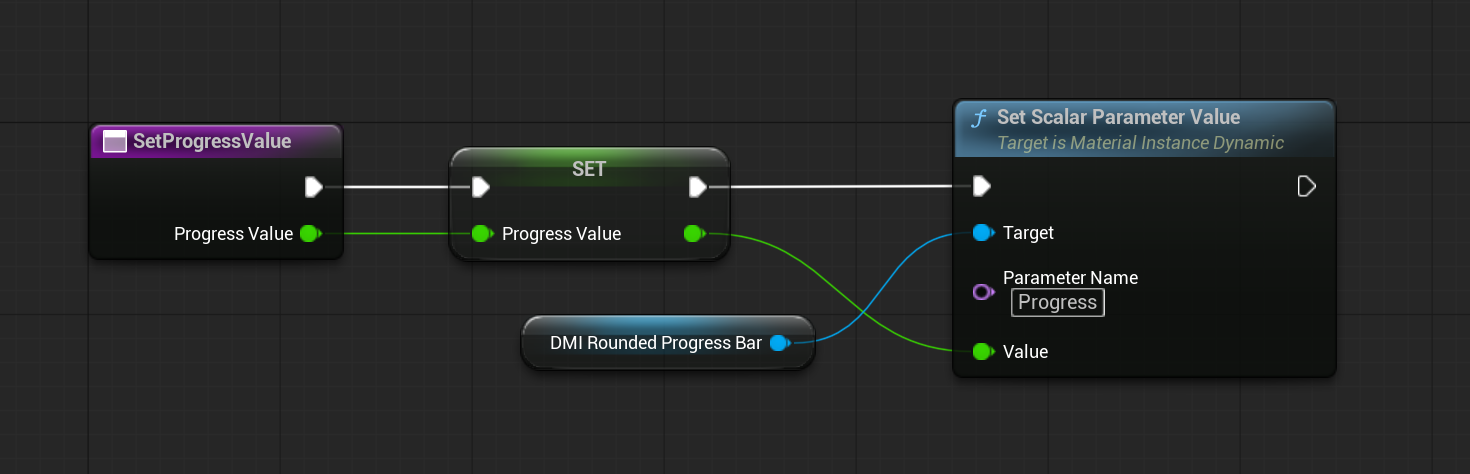
Create a function called SetProgressValue, where you can set the progress value variable as well as setting the scalar parameter "Progress" from our dynamic material instance.
Also make sure to put SetProgressValue on the pre-construct so it updates immediately in editor.
To change the value in game, you just have to call the SetProgressValue function.